Globalize Your Business: Learn How to Manage NetSuite Component Translations
Globalize Your Business: Managing Translations in Netsuite Components
I was fortunate to work on a SuiteApp designed to support people from diverse backgrounds. Our goal was to globalize the application by localizing it to meet users' needs. Language influences us more than we often realize, playing a crucial role in market engagement. This vision aligns with NetSuite’s introduction of the Multi-Language feature, which enhances inclusivity and expands the scope of businesses it can support on a global scale.
Enabling Multiple Languages
To begin managing translations in NetSuite, you first need to enable multiple languages in your account. Here’s how to do it:
Enable Multi-Language Feature
- Navigate to Setup > Company > Enable Features
- Scroll down to “International” section
- Check the “Multi-Language” feature

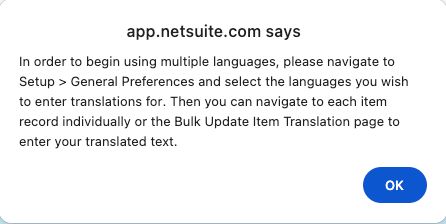
4. A dialog will appear, indicating the next steps.
5. Click [OK].
Choose the Languages You Want to Support
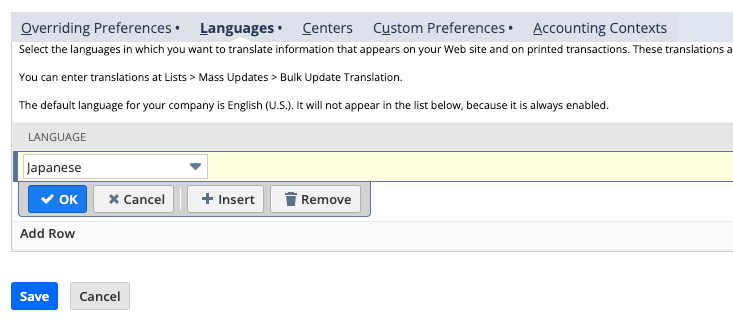
- Navigate to Setup > Company > General Preferences
- Click “Languages” subtab.
- Select the languages you want to translate into.
- Click Save.
Translating Components
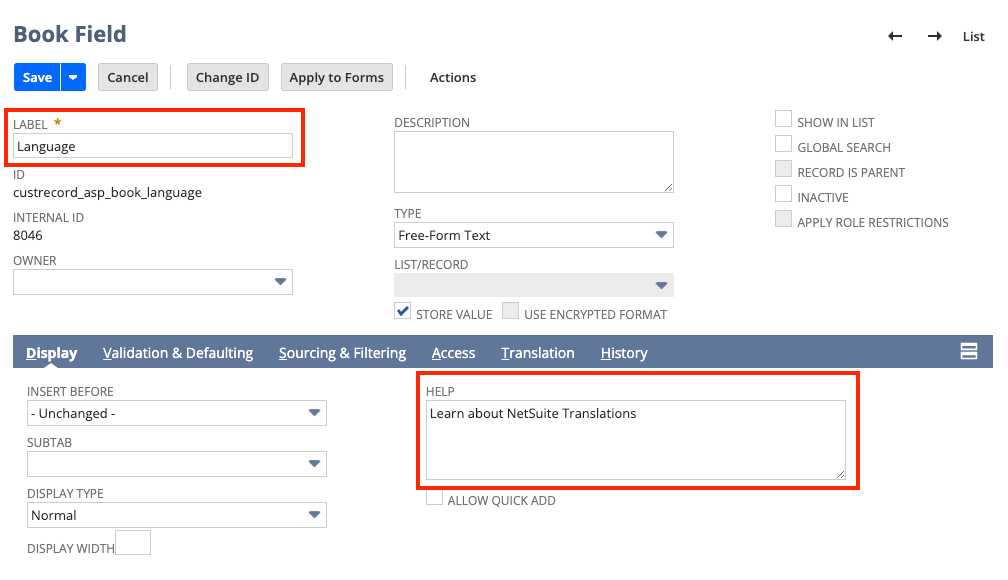
Once set up, a “Translations” subtab will appear when you create components.
For instance, let’s take a custom record type. We can translate the name of this custom record type, “Book,” to Japanese as 本.

For fields, both the label and help texts can now be translated.
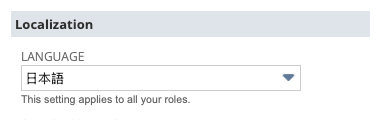
To see the translations in action, change your language preference to Japanese:
- Navigate to Home > Set Preferences > General > Language, and select 日本語.
2. Then, create an instance of the custom record type.

Problem
If you want to deploy this component to another account, you can download the XML for the custom record type. Just keep in mind that the XML won’t include the translation strings you added. When you create a new instance of the component using the XML definition, you’ll need to re-enter those translation strings manually.
Solution
Use Translation Collections!
- Navigate to Customization > Translations > Manage Translations
- In the Collections section, click [Create New].
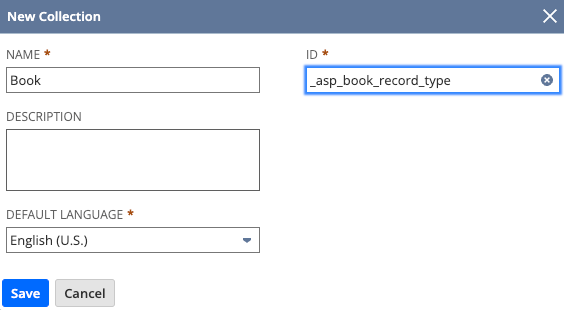
3. Select the created translation collection and click the [+] icon.
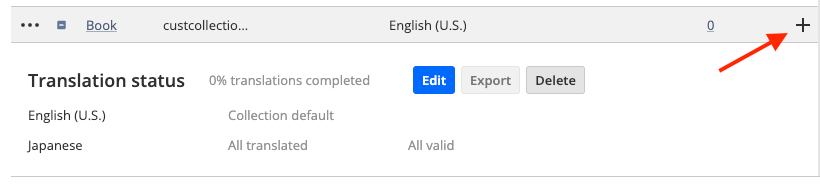
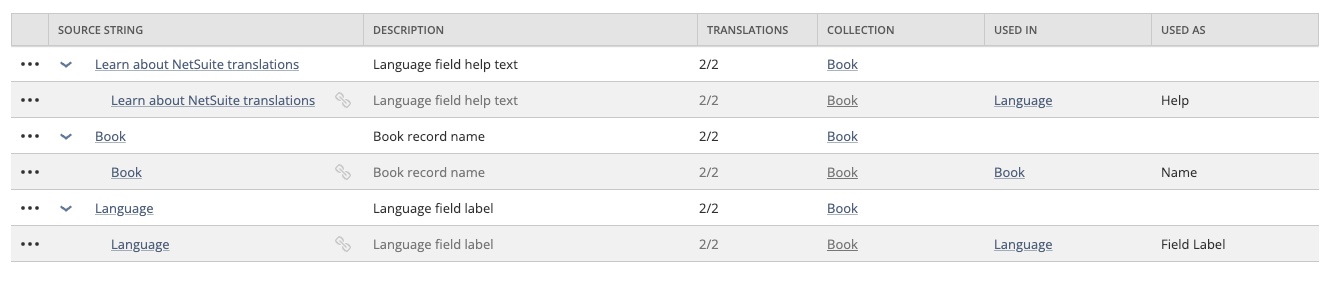
4. Add translation strings for the record name, field label, and help texts.

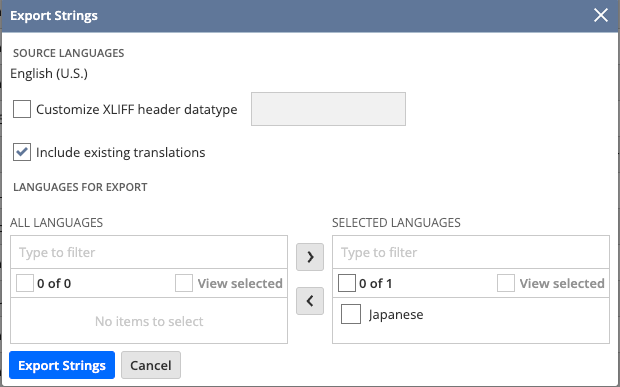
Now you can download the translation XML definitions:
- Download Translation collection
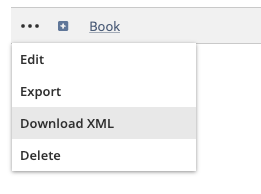
2. Download Translation collection
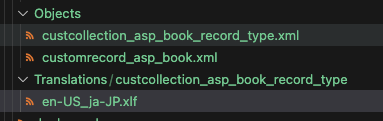
3. Store these in your project:some text
- Place the Translation Collection in the Objects folder.
- Place the Translation XLF files in the Translationsfolder.
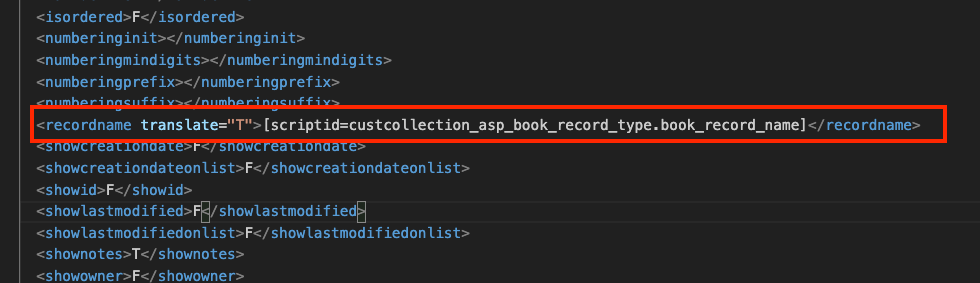
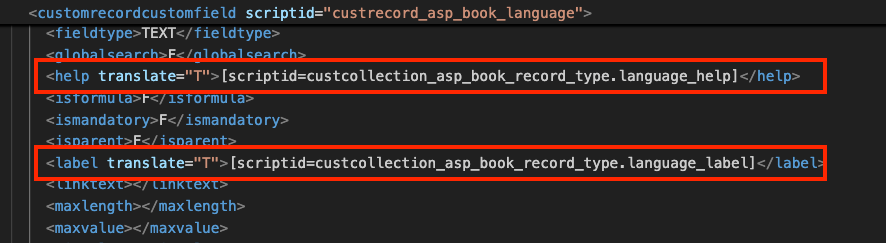
Next, link our custom record type to translate it. In the XML definition of our custom record type, use translate="T" for the following:
- recordname
- Field label
- Field help text
Ensure your deploy.xml includes the importation of translation strings.
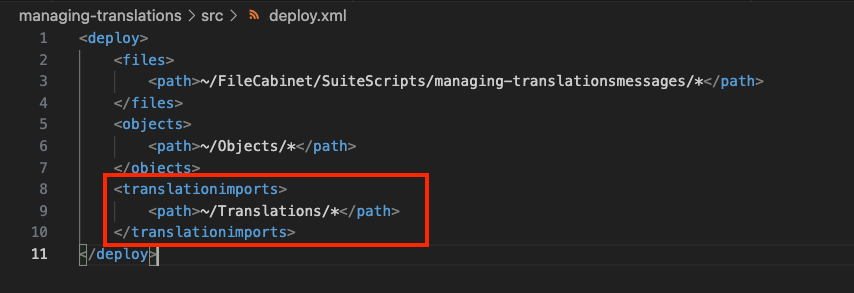
Once deployed, the translation strings will be linked to our custom record type, achieving the same effect while storing the translation strings in our project.
Final Thoughts
Previously, as a Software Engineer in Test, one of our tasks was to ensure that the translation strings were set correctly. At that time, the Translation Collections feature wasn’t available, and we had to automate the process of setting strings for each component individually.
This feature really changes the game for streamlining the translation process in our applications. With just a simple deployment, the translation strings are included automatically.
In this article, we covered how to manage translations for NetSuite components. There’s also a new module, the N/translation module, that we can use in SuiteScript, which will be the focus of our next article.
To see the complete SuiteScript code and implementation details discussed in this article, visit Jona’s GitHub repository.

Meet the Author
Jona has over a decade of experience in SuiteCloud Development on the NetSuite platform. She specializes in implementing advanced solutions and has led teams in creating high-quality software. Jona holds multiple certifications and has been recognized with awards like the Summit Award and Quality Champion Award.
Tags
Accelerate ERP Success with Expert Solutions
Ready to put what you've learned into practice? ATSOURCE delivers both the specialized talent and comprehensive NetSuite support you need to turn strategy into results.Connect with our experts today and move from planning to performance.